

Setting up Microsoft Outlook on Windows
Step 1
Open Outlook
Step 2
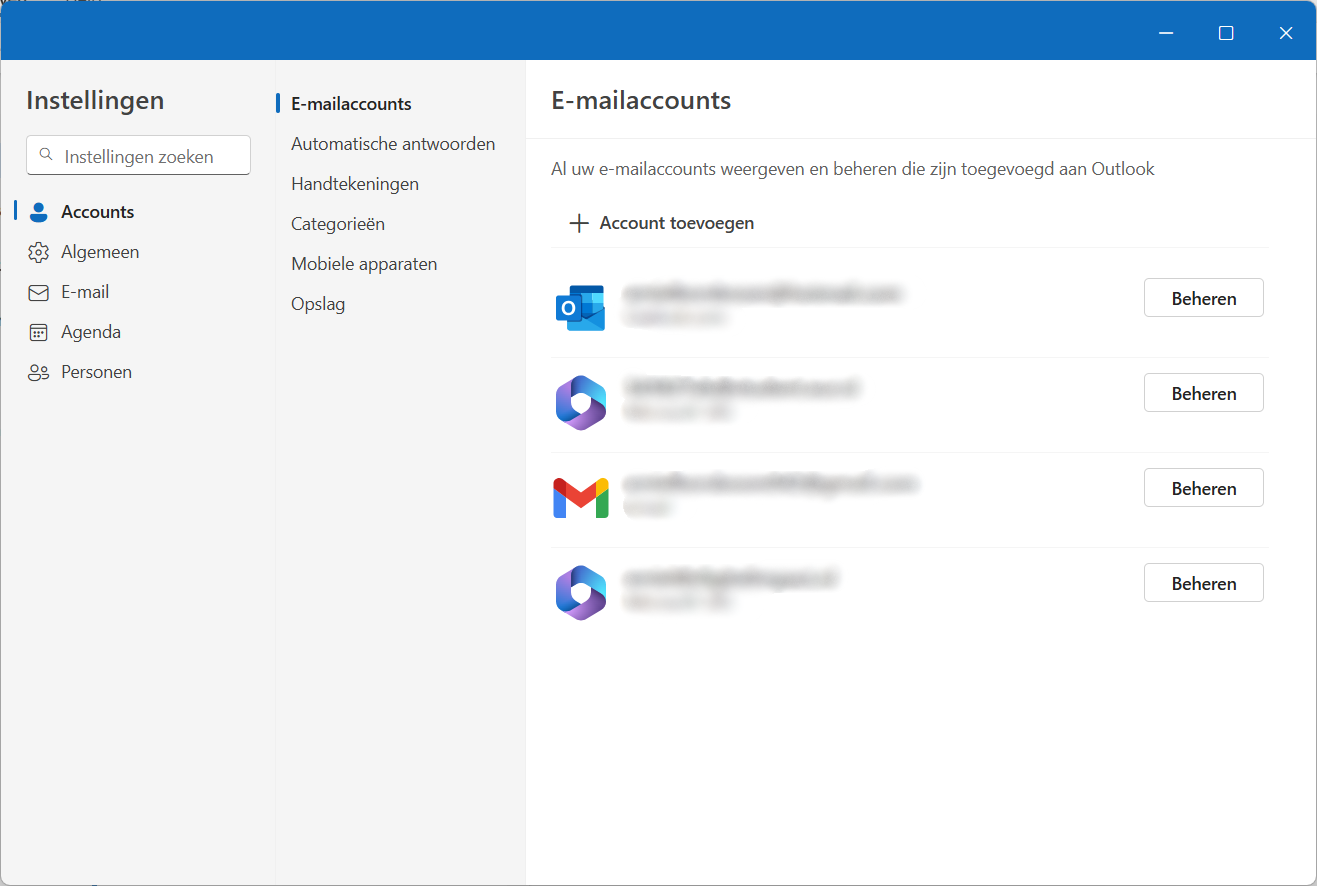
Open the settings by clicking the cog at the top right

Step 3
Go to Accounts > Email accounts and choose the Add account option
Step 4
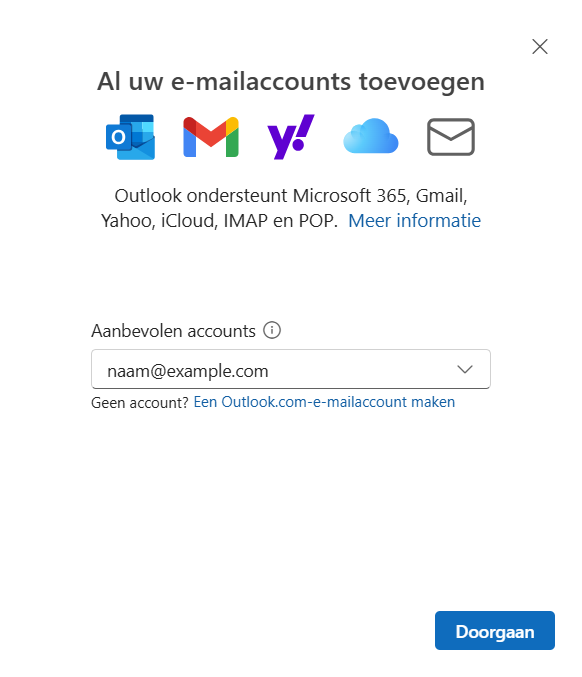
Enter the email address you want to use in Outlook and then click Continue
Step 5
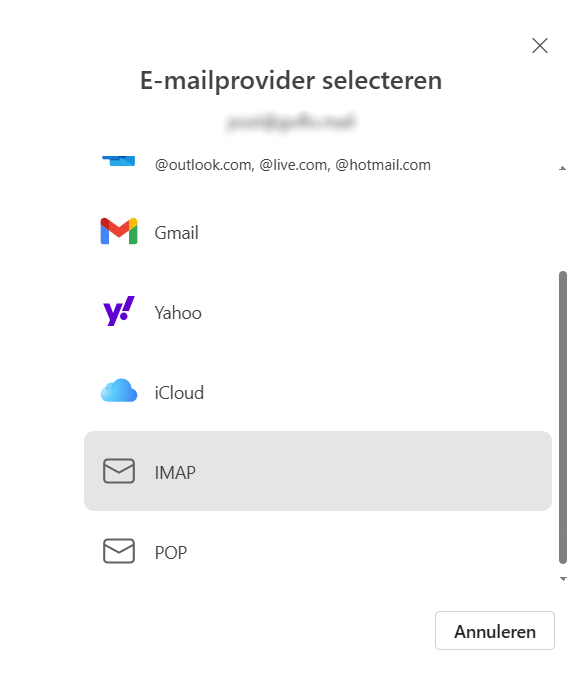
Choose the email provider IMAP (when using email from Digital Impact)
Step 6
Switch on Show more and fill in the following details:
- Password: The password you received for this email address
- Incoming IMAP server: mail.digitalimpact.nl Port: 143
- Secure connection type: SSL/TLS (recommended)
- SMTP username: The email address you chose
- SMTP password: The password you received for this email address
- Outgoing SMTP server: mail.digitalimpact.nl Port: 587
- Secure connection type: SSL/TLS (recommended)
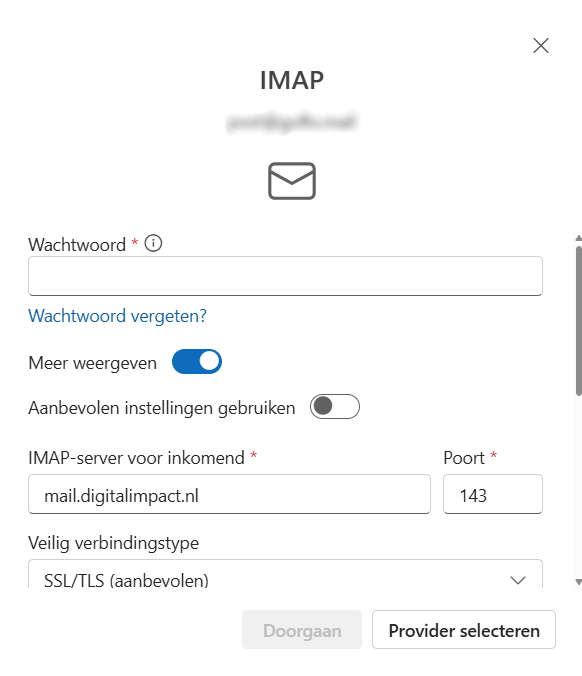
Once all the details are filled in, click Continue
Tips:
- Setting up email can sometimes differ from what is described above. In step 6 you may have to switch between the various options. The automatic setting is usually enough.
- Take care not to make typos when entering the email address and the password. A capital i (I) and a lowercase L (l) can look very similar, for instance. It can also happen that copying and pasting a password accidentally includes a space, which means the password will not be recognised.
- If problems persist, the support team can look at it with you or set up the email remotely for you; depending on the nature of the problem there may be a charge for this. Contact the support department or your contact at Digital Impact for that.