

Setting up Microsoft Outlook on macOS
Step 1
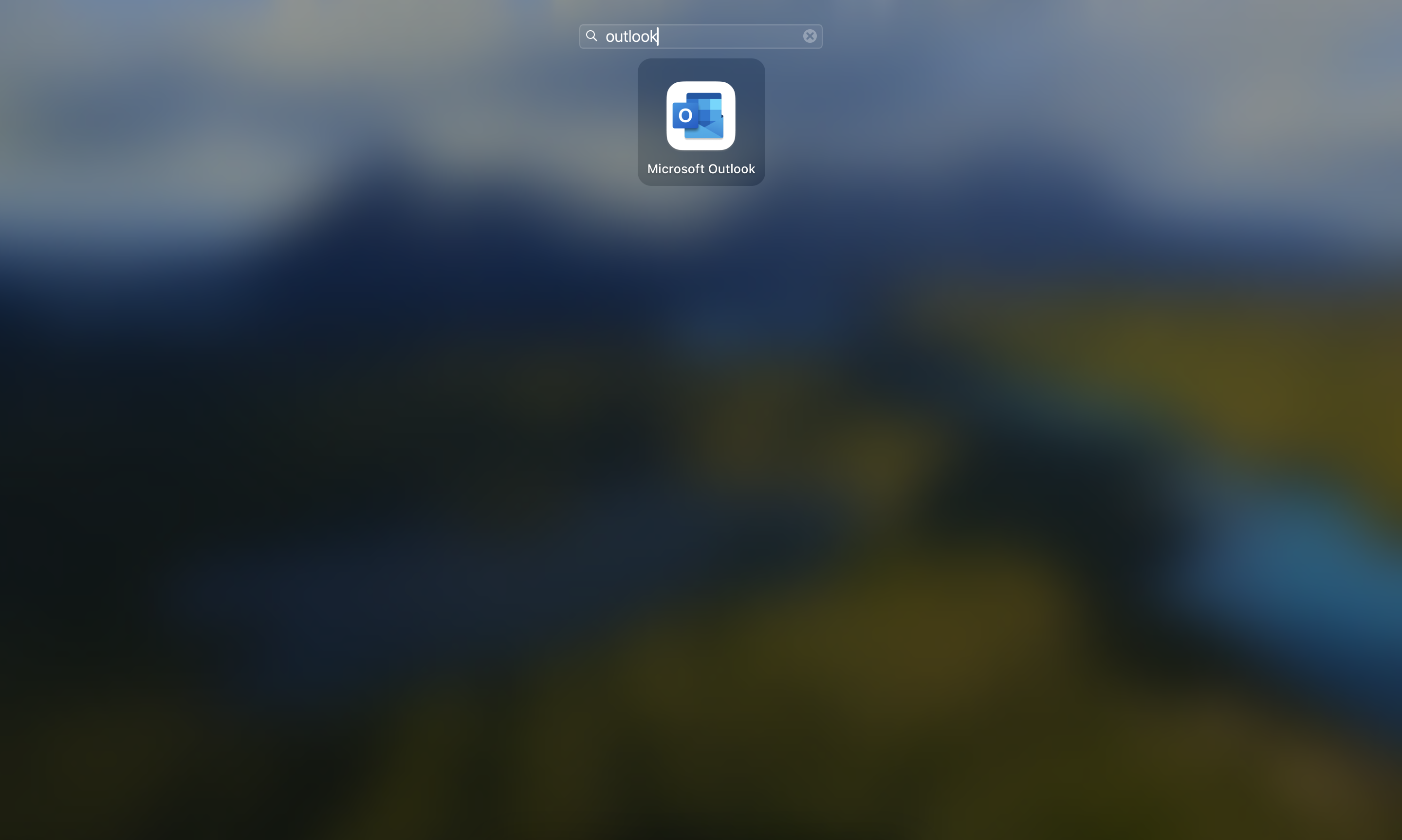
Open Microsoft Outlook by searching for Outlook
Step 2
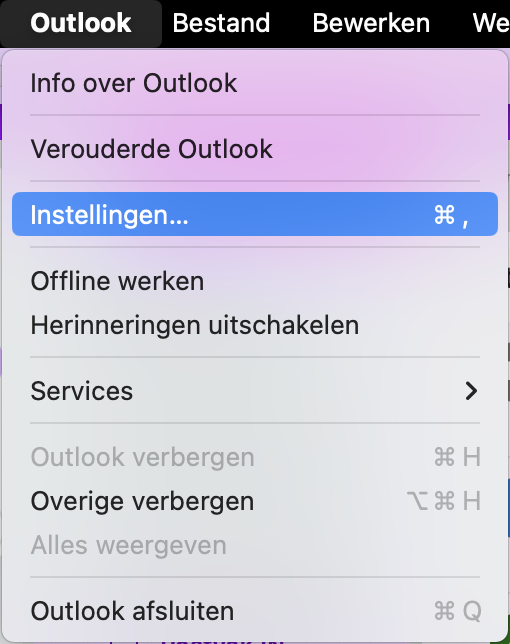
In the menu bar under Outlook, choose the Settings... option
Step 3
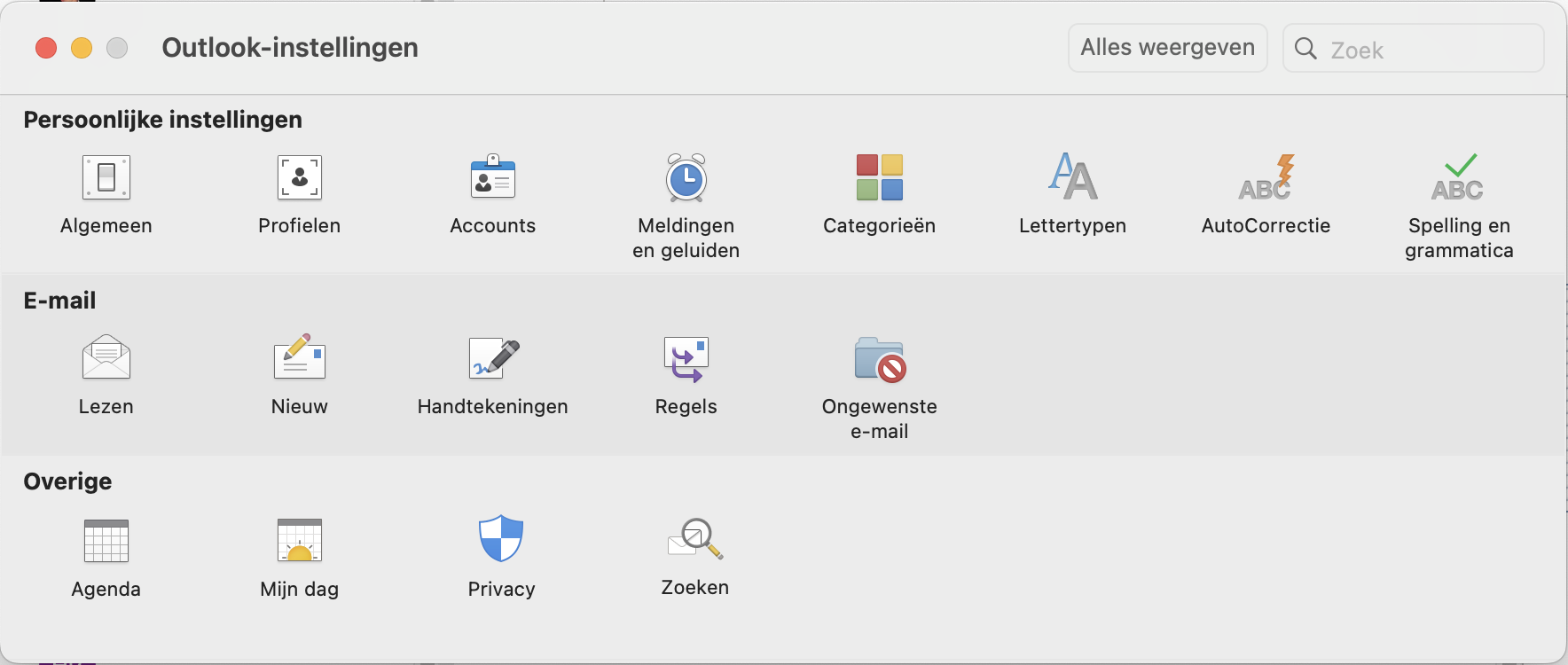
Choose the Accounts option
Step 4
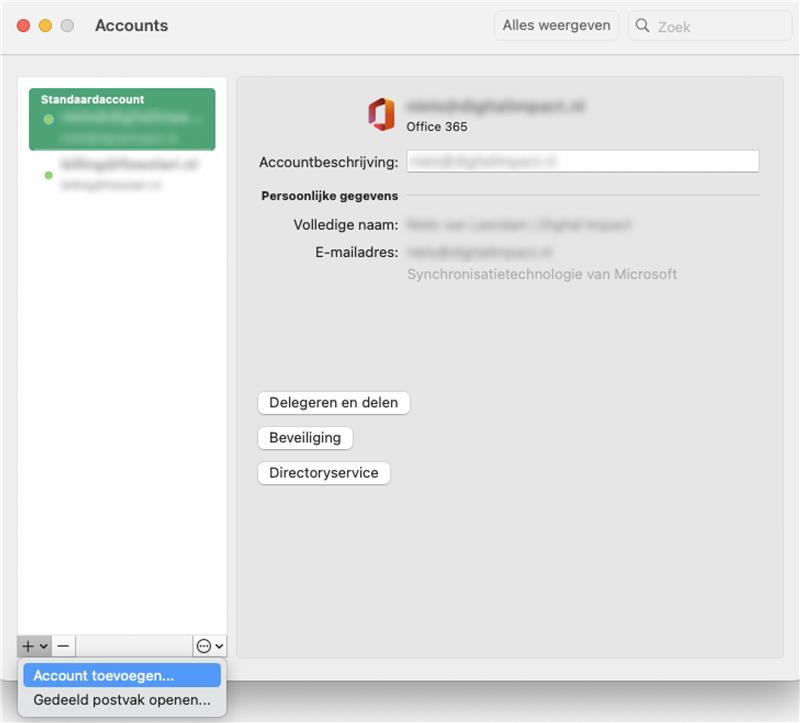
Add a mail account by clicking the + sign.
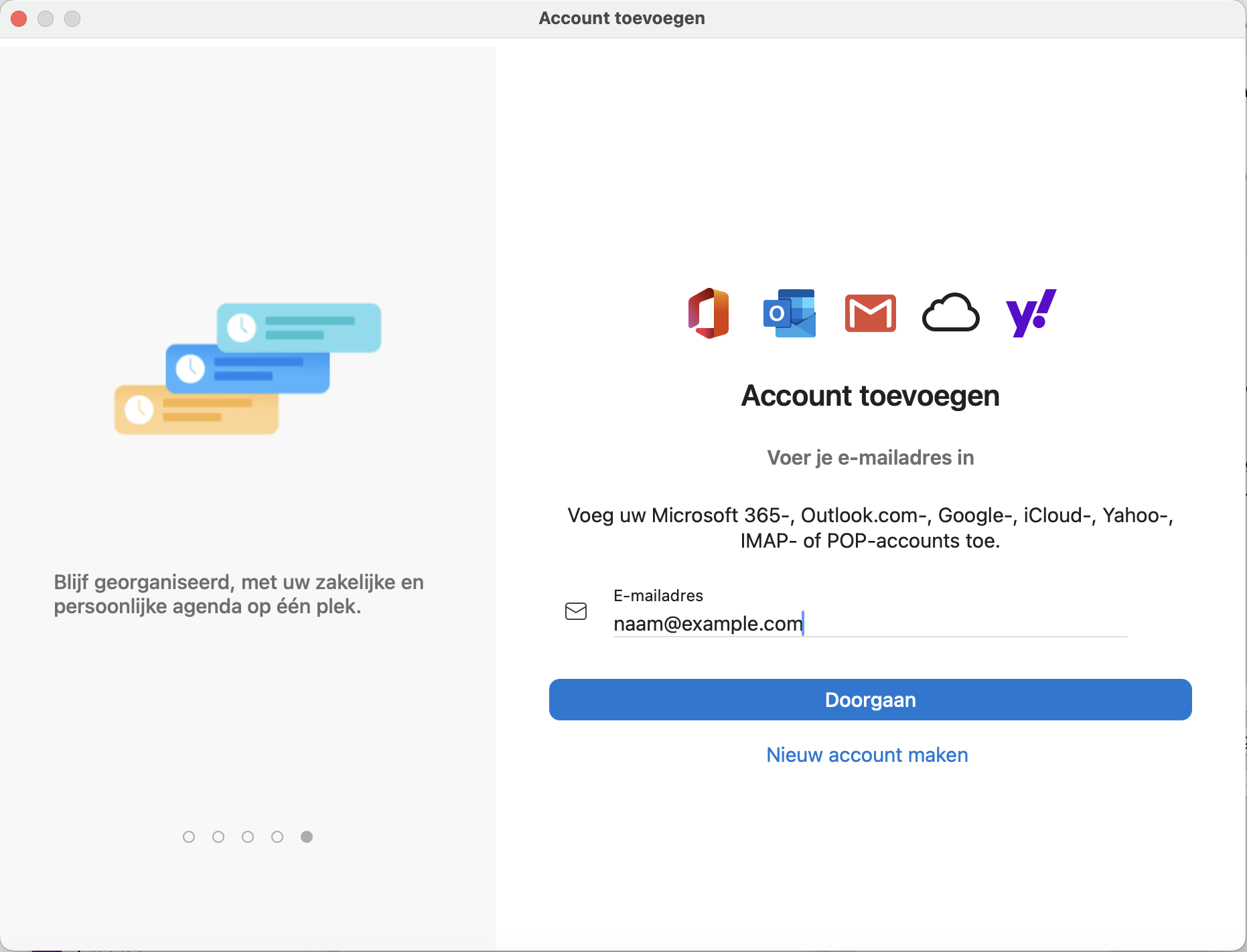
Step 5
Enter your email address here and click Continue.
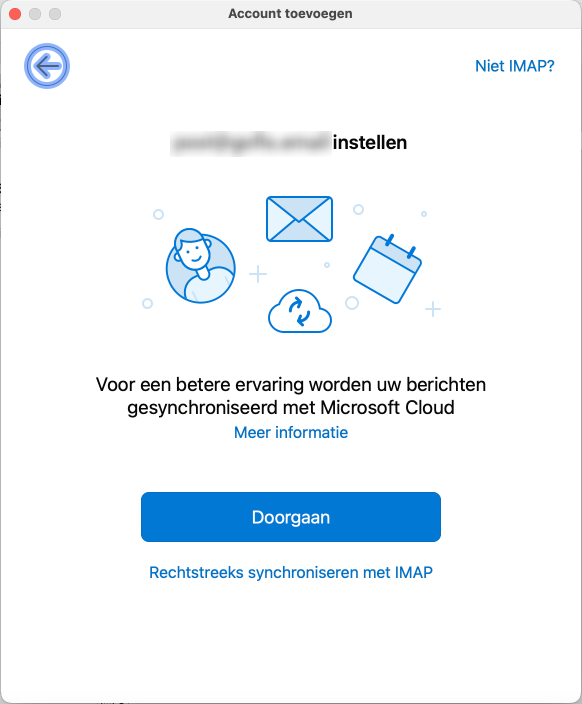
Step 6
Click Sync directly with IMAP
Step 7
Switch on Show advanced settings and fill in the following details:
- Email address: the email address of the mailbox
- IMAP username: The email address you chose
- IMAP password: The password you received for this email address
- Incoming IMAP server: mail.digitalimpact.nl port: 143
- SMTP username: The email address you chose
- SMTP password: The password you received for this email address
- Outgoing SMTP server: mail.digitalimpact.nl port: 587
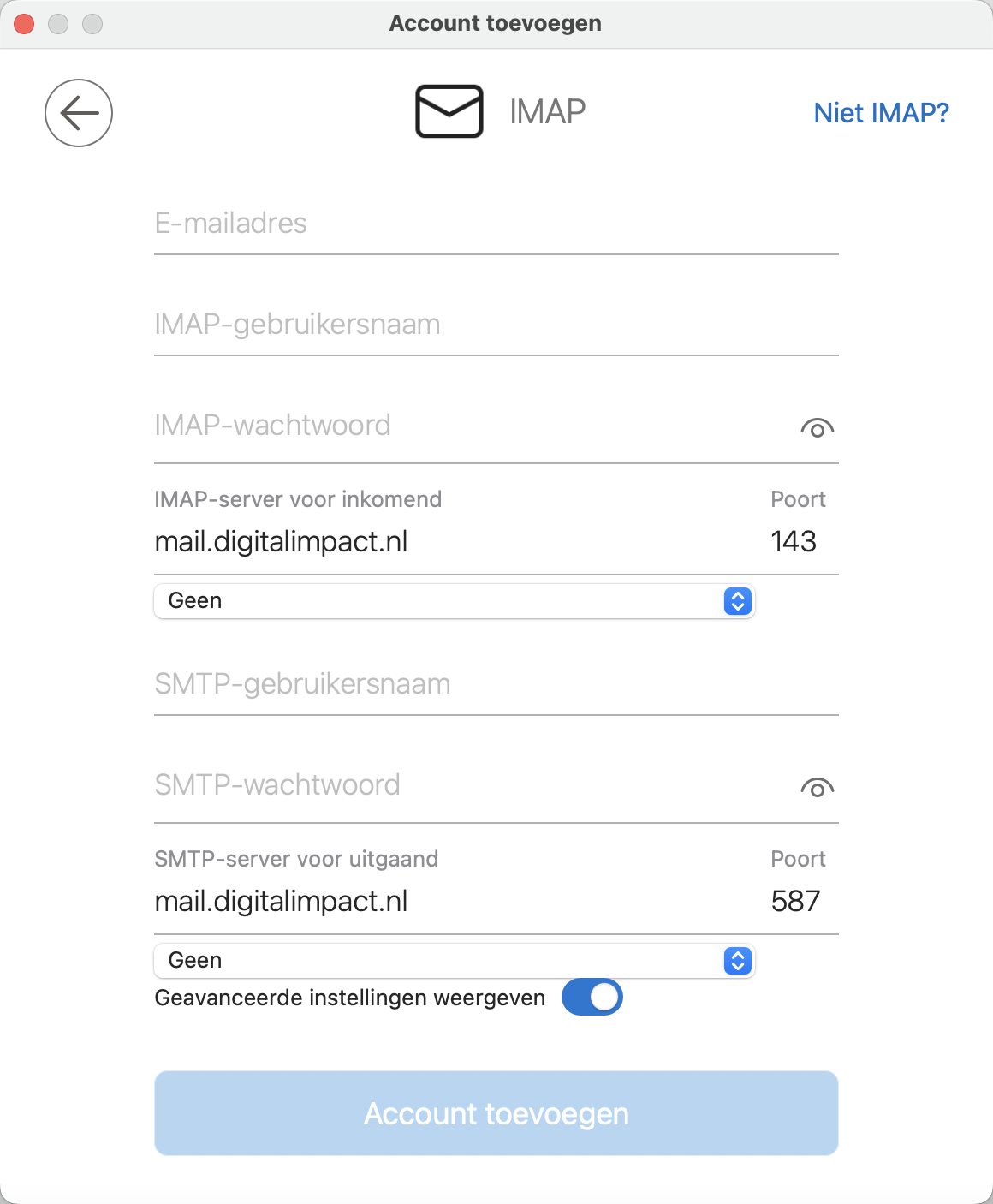
Once all the details are filled in, click Add account
Step 8
The mailbox has been added and appears alongside all your other mailboxes.