

Setting up Apple Mail on macOS
Step 1
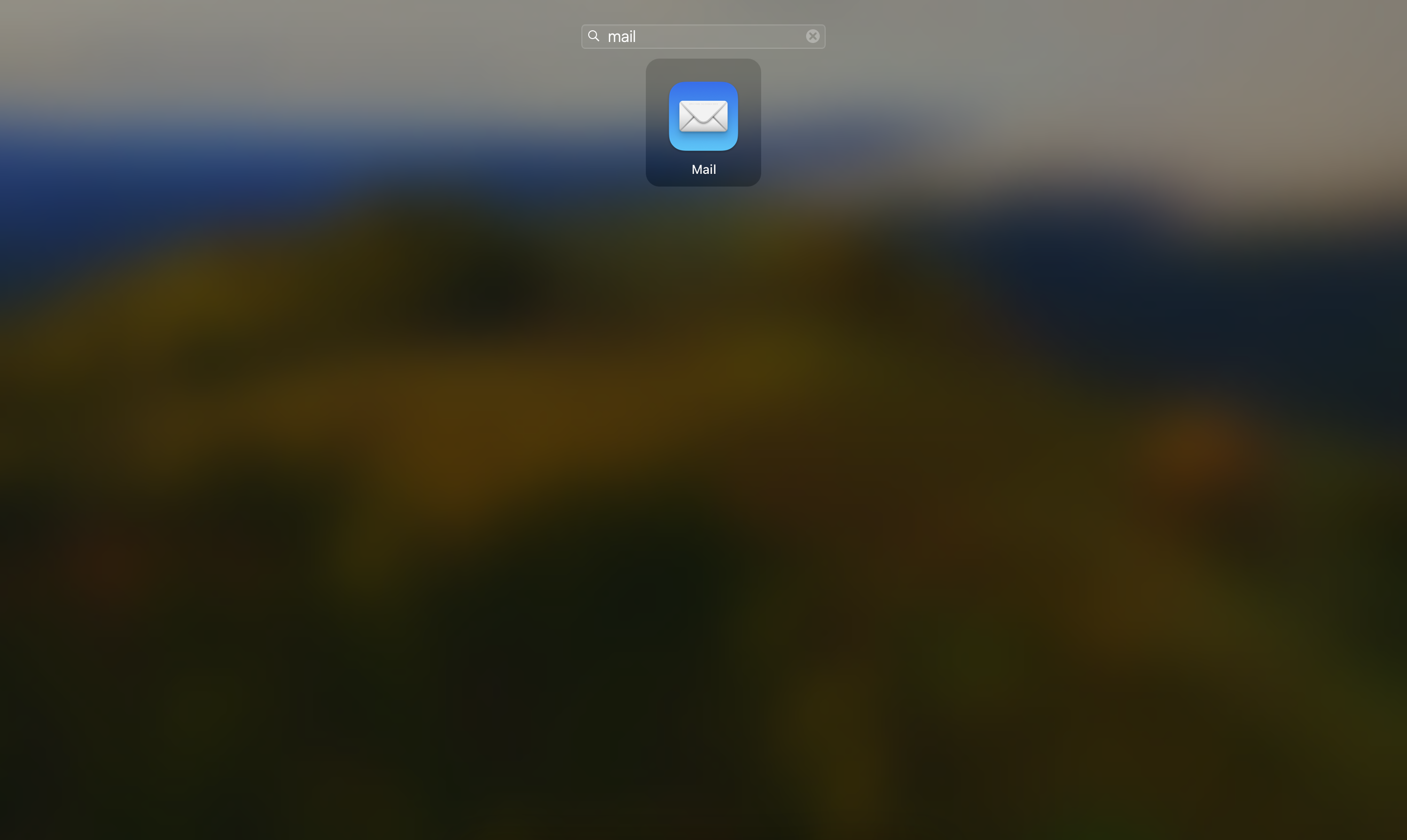
Open Apple Mail by searching for Mail
Step 2
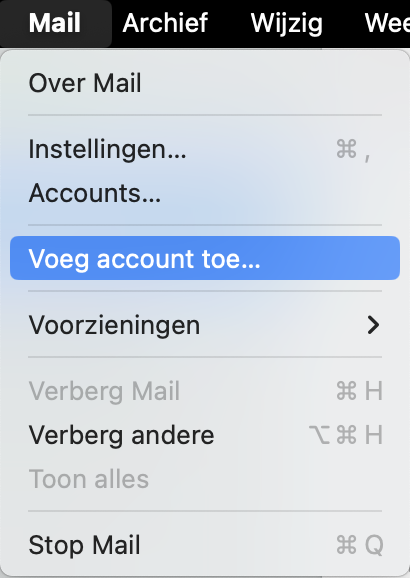
In the menu bar under Mail, choose the Add account... option
Step 3
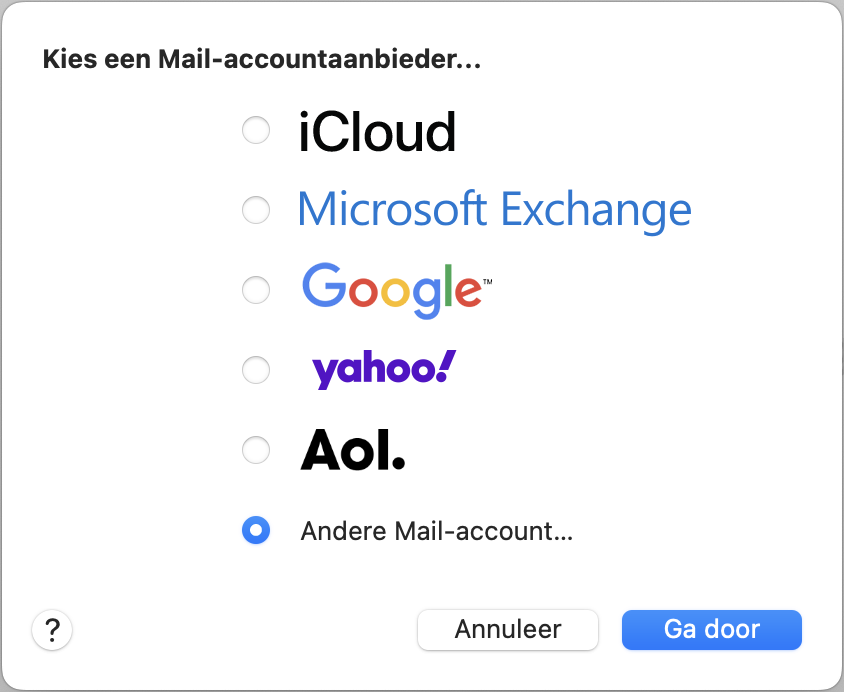
Under Choose a mail account provider, select Other Mail account...
Step 4
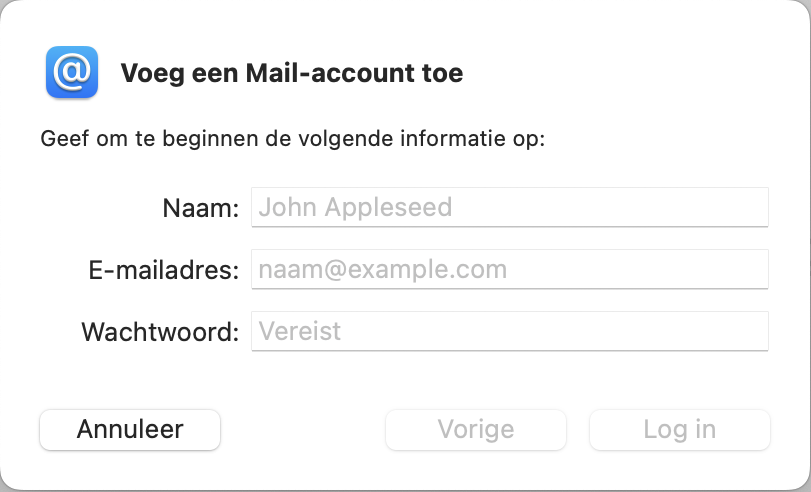
Now fill in the following details:
- Username: the email address you chose
- Password: the password you received for this email address
Once all the details are filled in, click Sign In
Step 5
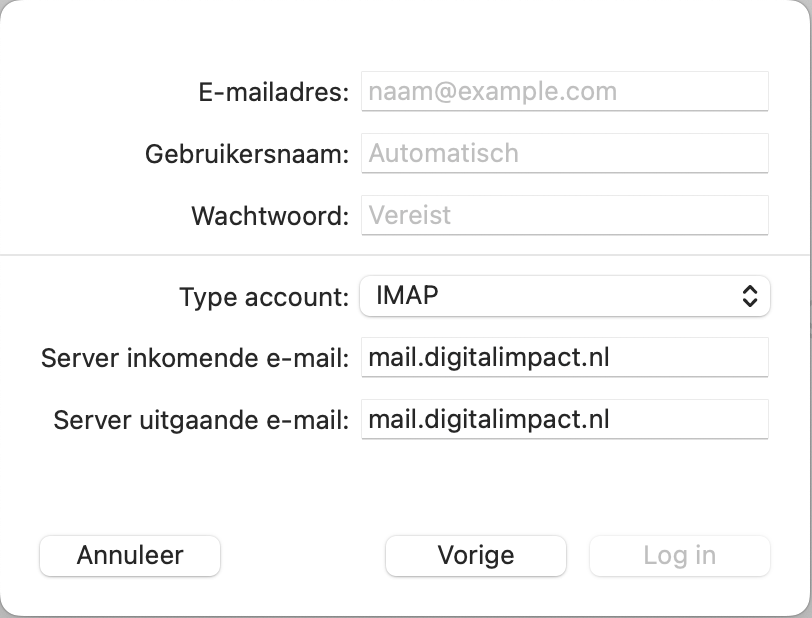
Now fill in the following details:
- Email address: The email address you chose
- Username: Username (filled in automatically; you can change it if you prefer)
- Password: The password you received for this email address
- Account type: IMAP
- Incoming mail server: mail.digitalimpact.nl
- Outgoing mail server: mail.digitalimpact.nl
Once all the details are filled in, click Sign In
Step 6
Select the items you want to receive in your mail program here.
Step 7
The mailbox appears alongside all your other mailboxes. The folders synchronise, and depending on the settings of your mail program incoming messages arrive in the shared inbox.