

Setting up Android Mail 8.0
This guide is for Android version 8.0
Step 1
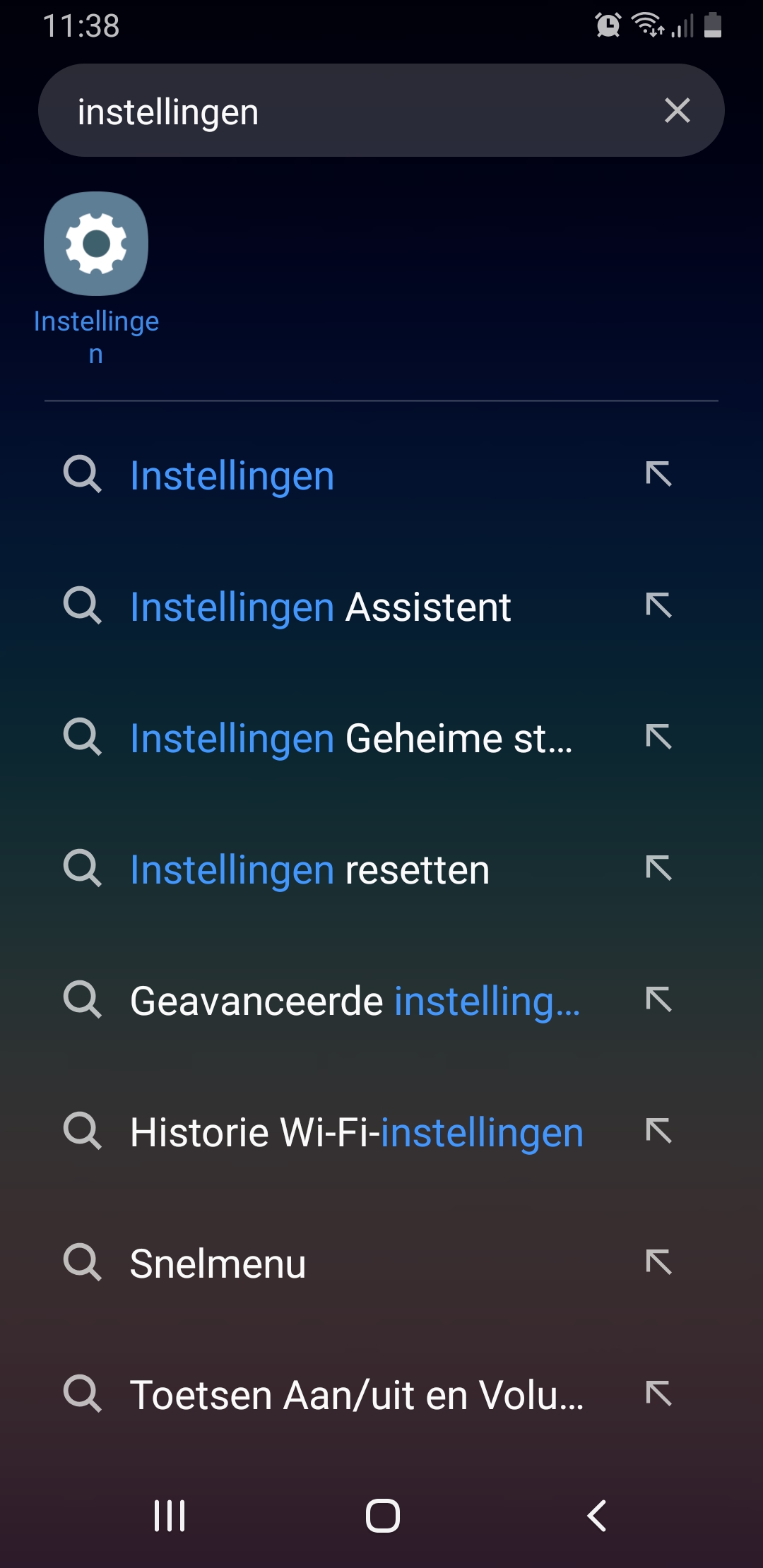
Tap the Settings icon or search for the Settings app
Step 2
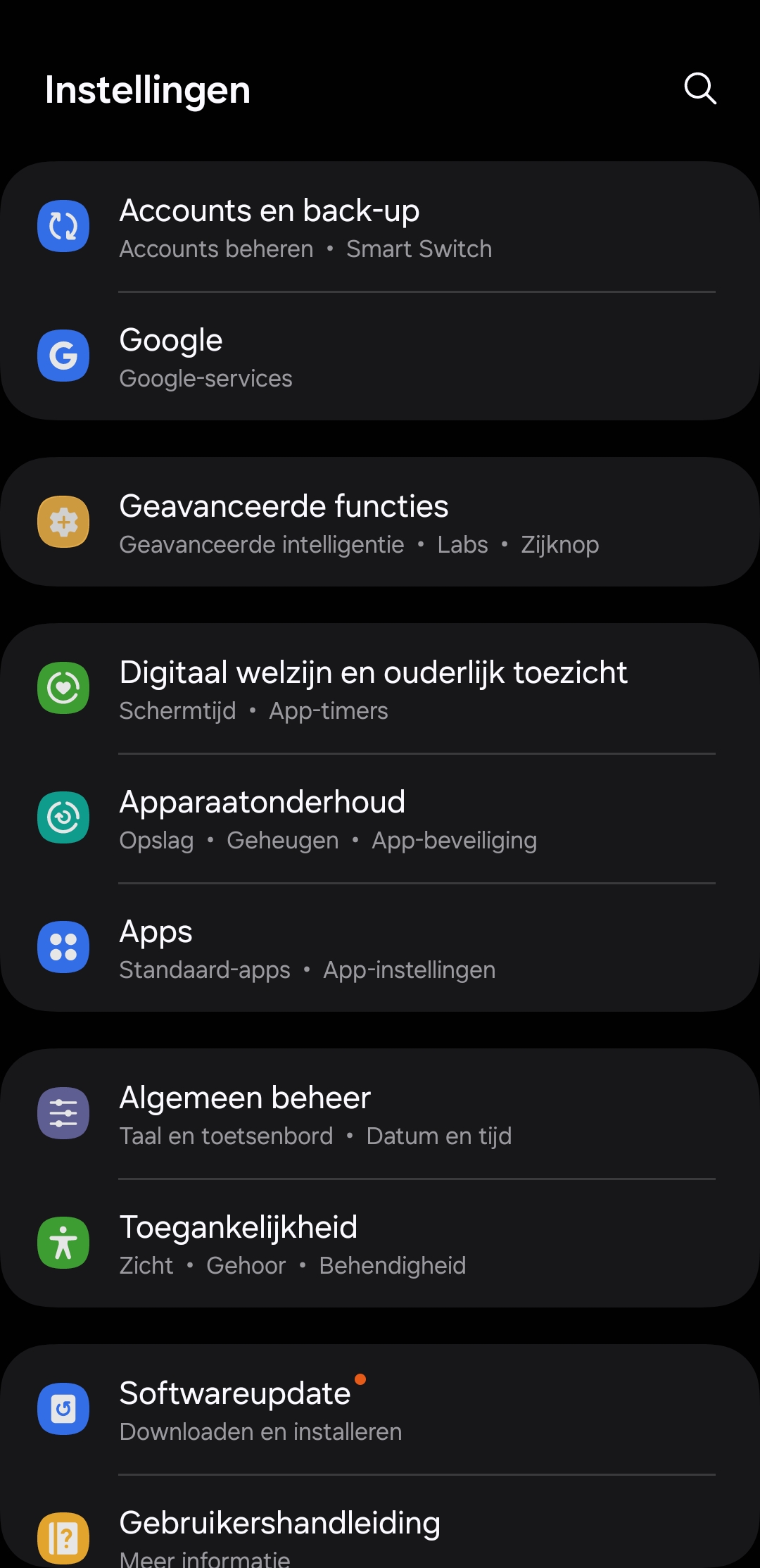
Tap the Accounts and backup button
Step 3
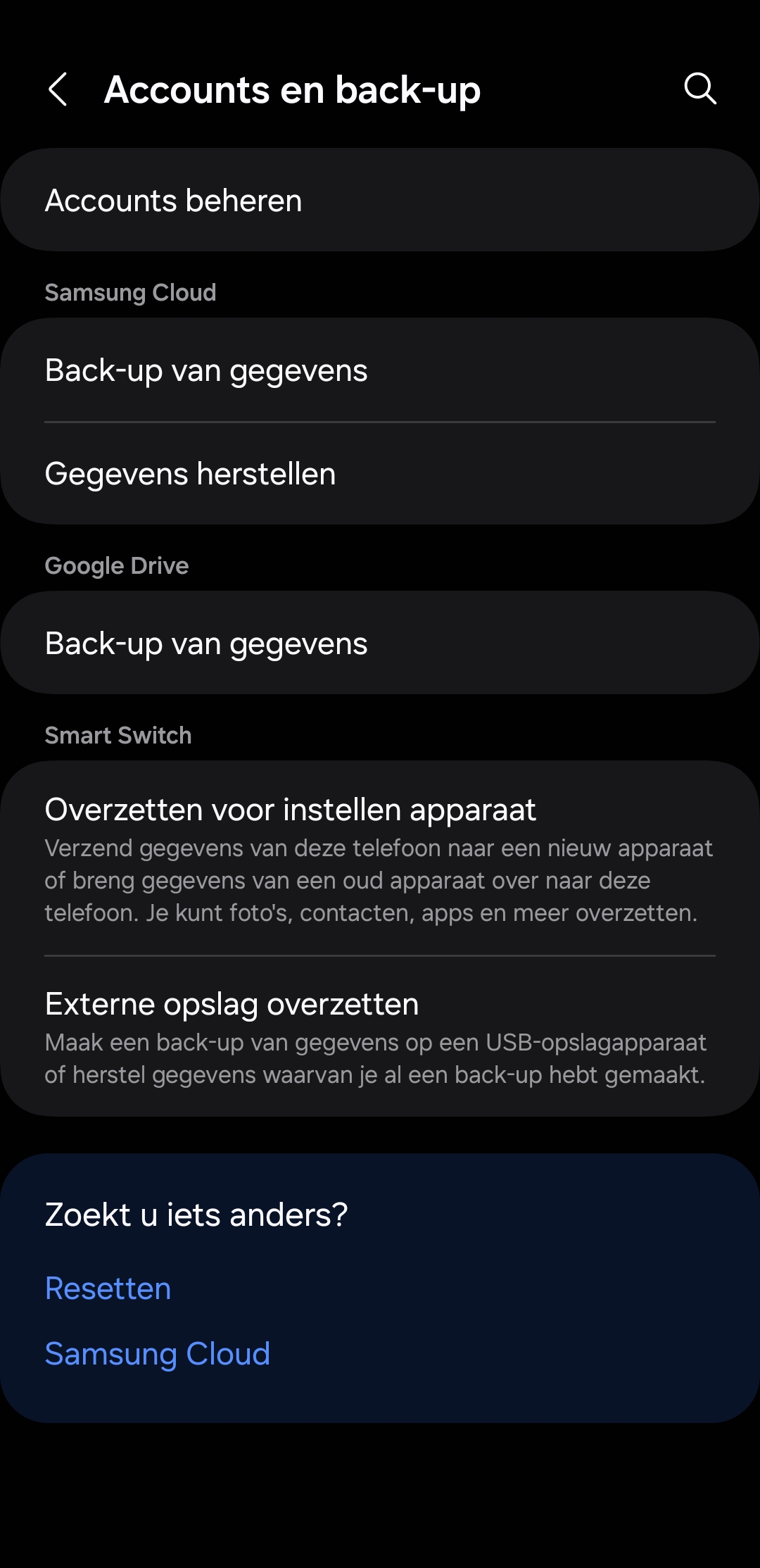
Tap the Manage accounts button
Step 4
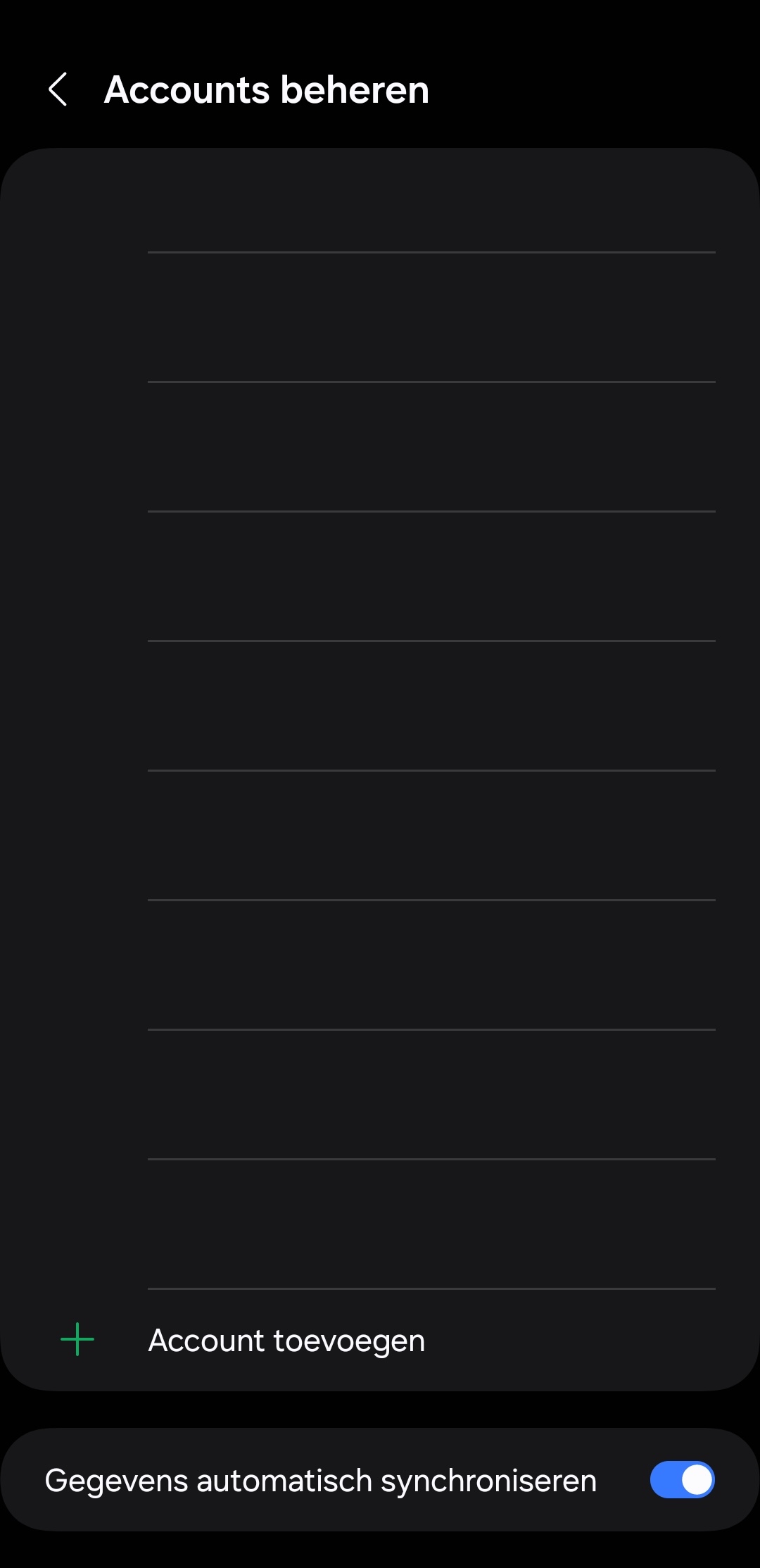
Then tap the Add account button
Step 5
Then select the Personal (IMAP) button
Step 6
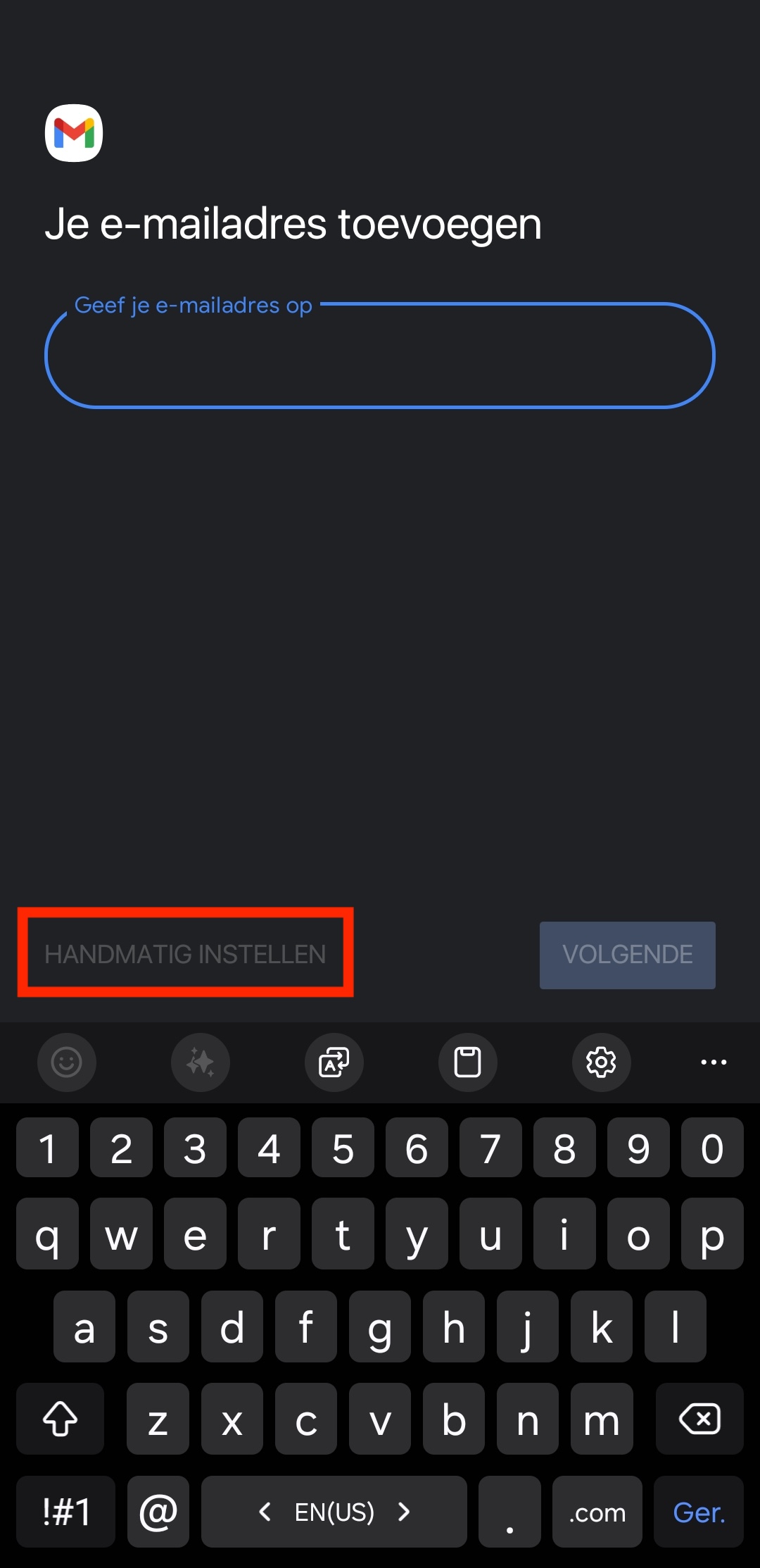
Enter your email address and tap the Set up manually button
Step 7
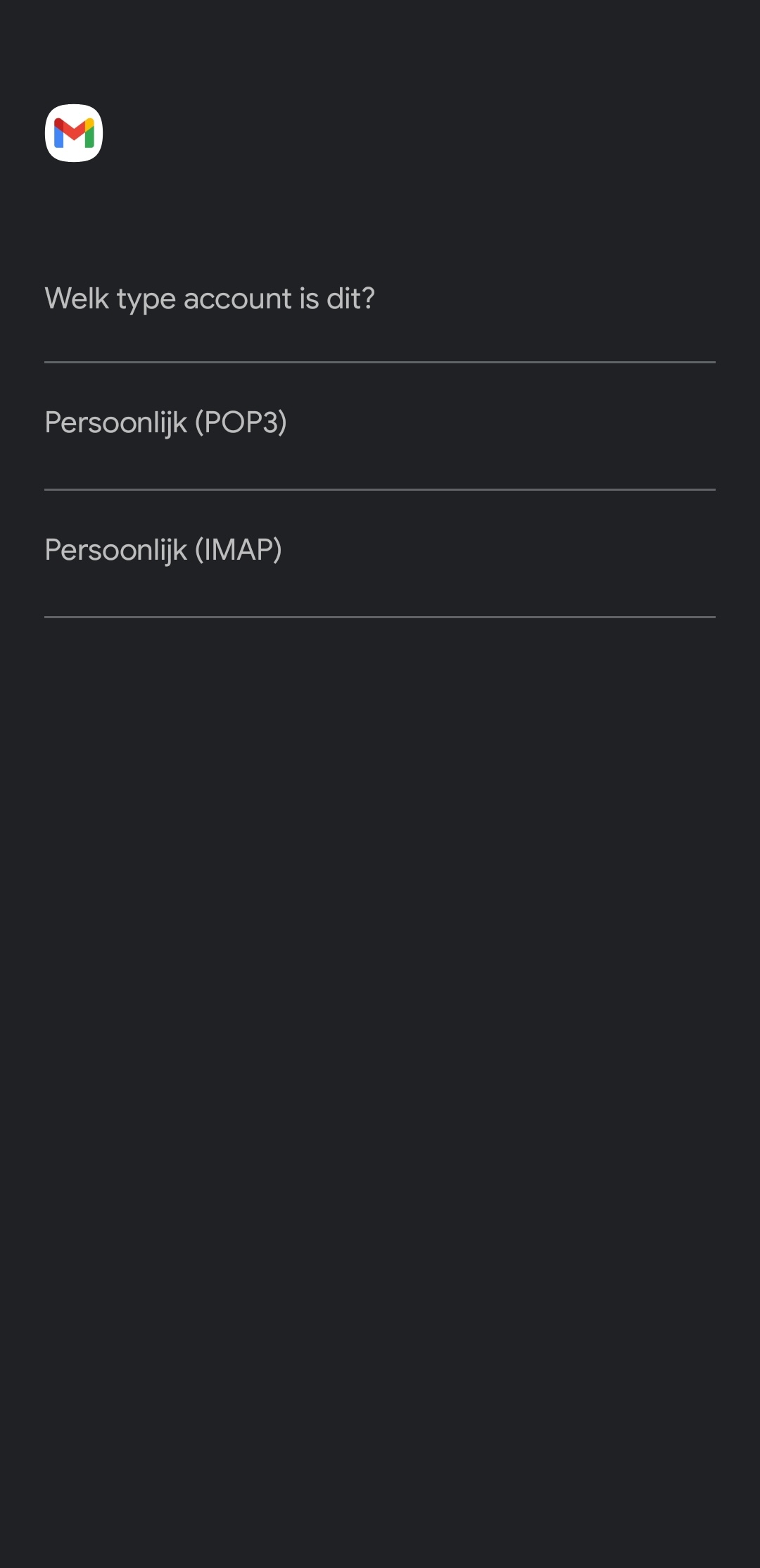
Tap Personal (IMAP)
Step 8
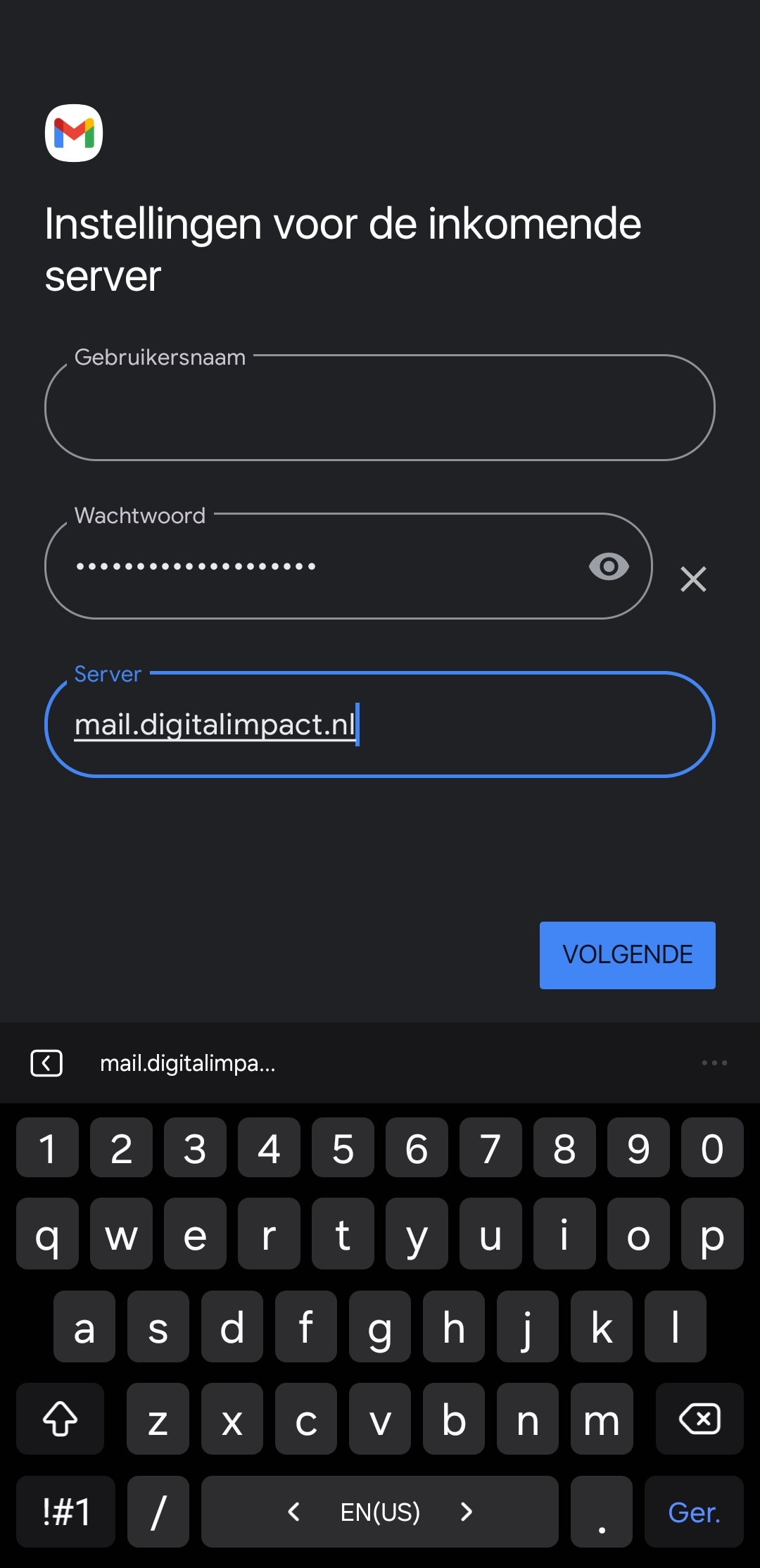
Enter your password
Step 9
Fill in the following details:
- Email address: The email address you chose
- Password: The password you received for this email address
Under Incoming server, enter:
- IMAP server: mail.digitalimpact.nl
- Security type: TLS
- Incoming server port: 143
Then scroll down. Under Outgoing server, enter:
- SMTP server: mail.digitalimpact.nl
- Security type: TLS
- Outgoing server port: 587
- Require sign-in to send email: Switch on
- Username: The email address you chose
- Password: The password you received for this email address
Step 10
You then return to the overview, where you can see the email has been added to your accounts.