

Managing address lists
Managing address lists
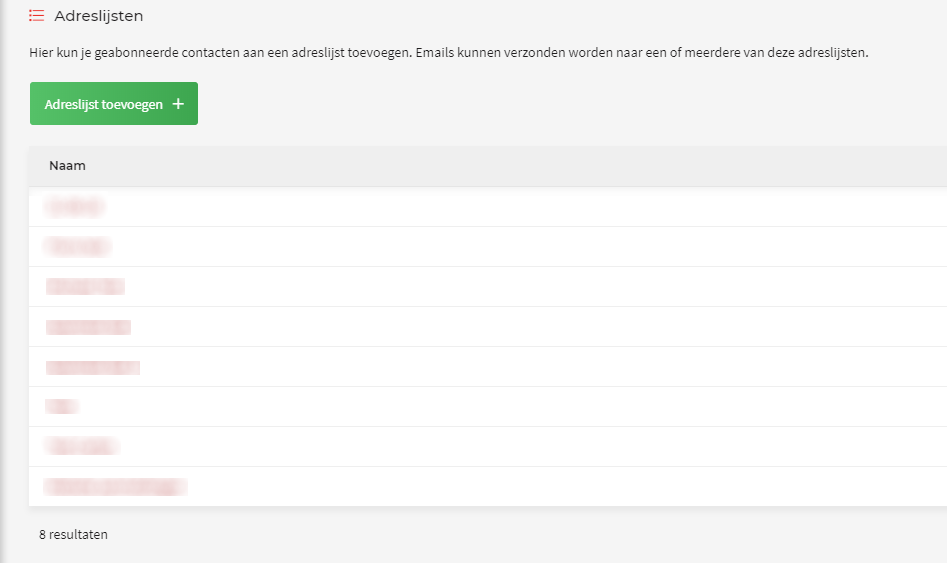
The Address lists submodule lets you divide your contacts into address lists easily. That way you can quickly distinguish between former customers, new customers and suppliers, or you can put everyone in one big pile; the choice is entirely yours.
- Click the Nieuwsbrief module.
- Then click Adreslijsten.
- Next, click Adreslijst toevoegen.
- Here you choose the name of the address list and whether it is active straight away.
Adding contacts
- Click the Nieuwsbrief module.
- Then click Contacten.
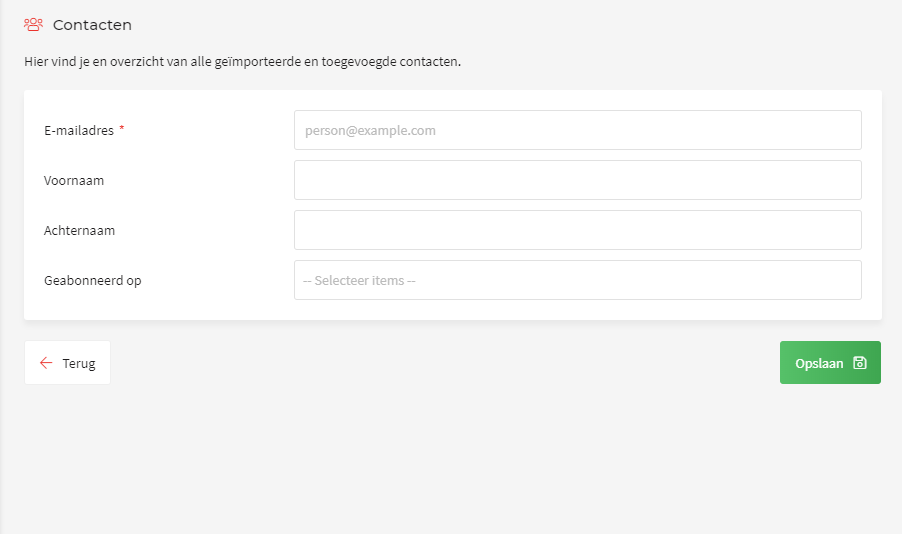
- Next, click Contact toevoegen.
- You then get a window where you can enter customer details for your mailing.
- Under Geabonneerd op you can indicate which mailing you want to subscribe this contact to.
- Finally, click Opslaan once you have filled in all the fields to save everything.
Importing/exporting contacts
Using CSV lists it is also possible to export or import complete contact lists. Navigate to the contact overview in the CMS as usual.
- Now click "Acties" instead of "Contact toevoegen".
- The drop-down menu now shows the import and export options
- If the list you are importing has column names, move the slider to the right.
- You now get a follow-up menu where you select the address list you want to add the contacts to.
- Then, for each item, you choose which column that item sits in.
Editing or deleting a contact
Editing:
- To edit a contact, click the yellow pencil next to the contact you want to edit.
- Then click Opslaan to apply your changes.
Deleting:
- To delete a contact, click the red cross next to the contact you want to remove.
- You then get a confirmation. Click OK to delete the contact or Annuleren to cancel the action.
Subscribed:
- The slider determines whether this contact is subscribed or not
- A contact that is not subscribed will not receive email in any address list; the contact is "off"