

Instellen Android Mail 16
Step 1: Open Settings
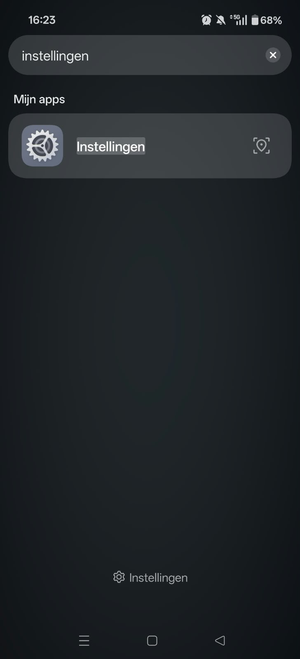
Open the app drawer on your phone and search for Settings. Tap the gear icon to open the app.
Step 2: Go to Users & accounts
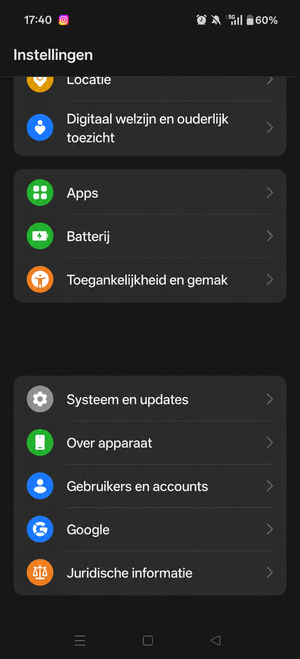
In Settings, scroll down to Users & accounts and tap it. You can also use the search function in Settings to find this section.
The name of this menu may vary depending on your phone. This guide follows the menu names shown on the device in the screenshots.
Step 3: Add an account
Scroll down to the bottom of the account list and tap Add account.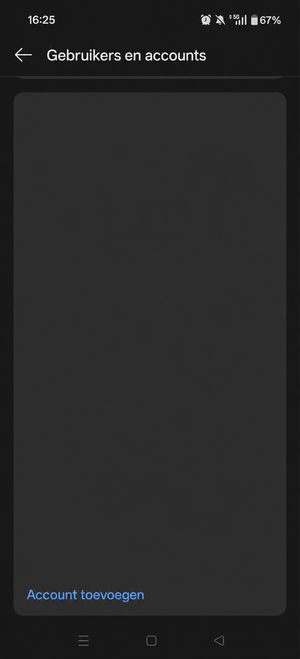
Step 4: Select Personal (IMAP)
Scroll down the list and tap Personal (IMAP) next to the Gmail logo. This opens Gmail’s account setup.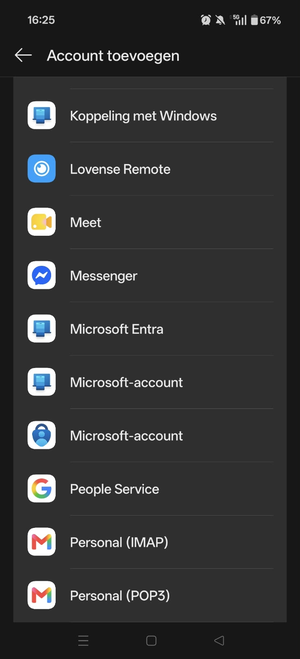
Step 5: Enter your email address
Enter your full email address. Tap Manual setup if this option is available, or tap Next to continue.
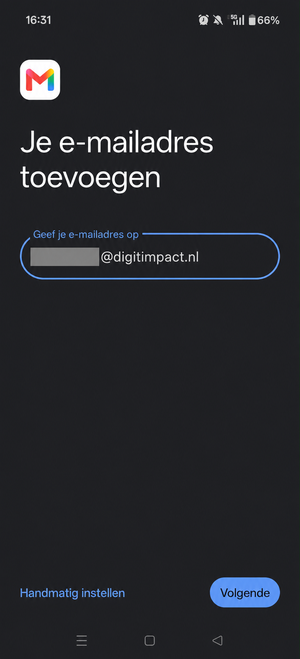
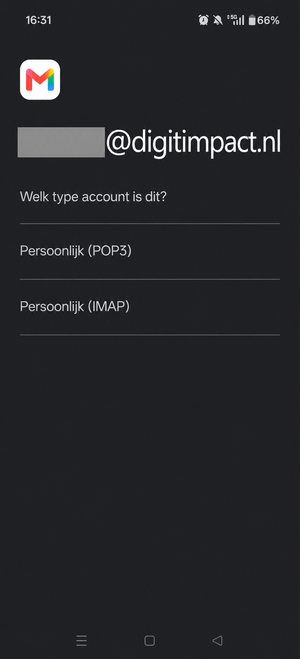
Step 6: Choose IMAP
If Gmail asks which type of account you want to add, select Personal (IMAP). If this screen does not appear because you have already selected IMAP, continue to the next step.
IMAP synchronises your emails with the mail server, allowing you to access your mailbox on multiple devices.
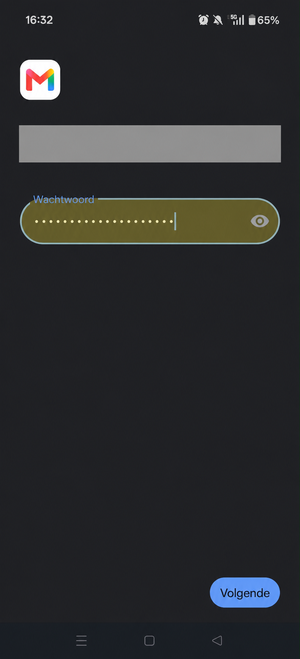
Step 7: Enter your password
Enter your mailbox password and tap Next.
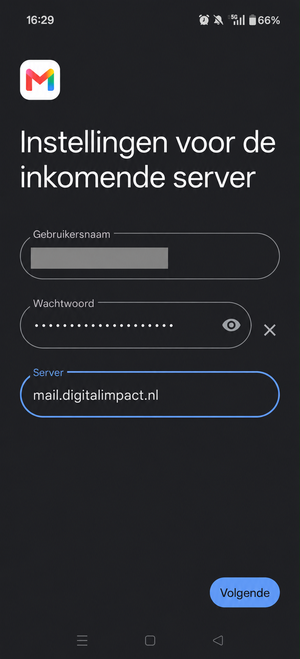
Step 8: Configure the incoming server
Check the incoming server settings:
Username: your full email address.
Password: your mailbox password.
Server:
mail.digitalimpact.nl.
If the Server field only contains your own domain name, replace it with mail.digitalimpact.nl. Then tap Next.
Step 9: Configure the outgoing server
Check the outgoing server settings:
SMTP server:
mail.digitalimpact.nl.Require sign-in: enabled, if this option is displayed.
Username: your full email address.
Password: your mailbox password.
Tap Next.
Step 10: Complete the setup
Follow the remaining instructions on the screen. If Gmail displays account options, leave email synchronisation enabled and choose your preferred notification settings.
If prompted, enter a recognisable account name and your sender name. The sender name will be displayed to people who receive your emails.
Complete the setup and open your inbox. Send a test email and check that you can also receive emails.
Need help?
Having trouble setting up your account? Check your email address, password and server names. Contact Digital Impact if you receive an error message or need assistance.